Add ServiceNow to Copilot Studio with User Login SSO(So ServiceNow Permissions Are Respected)

The easiest way to wire ServiceNow into a Copilot Studio agent is also the one I see cause the most trouble later: point the connector at a single ServiceNow service account and let every user’s request flow through it. It demos beautifully. Then someone realizes the agent can read and write records that the person chatting with it would never be allowed to touch on their own — because ServiceNow only ever sees the service account, not the human.
The fix is to authenticate each user with their own Microsoft Entra identity before the agent talks to ServiceNow, so ServiceNow evaluates every call as that mapped user. Existing access control lists, roles, record-level permissions, and audit trails stay authoritative. That’s exactly what the connector’s Microsoft Entra ID User Login authentication type is for, and this is the complete end-to-end setup — the two Entra apps, the ServiceNow OIDC trust, the Copilot Studio connection, and the per-user consent flow — with every gotcha I hit along the way.
Run the agent as the person, not as a service account. With delegated Microsoft Entra ID User Login, ServiceNow sees the signed-in user’s identity — so their roles, ACLs, record-level permissions, and audit identity all still apply. No shared credentials, no over-privileged agent.
Why?Why not just use Basic Auth or a certificate?
Both collapse identity to a single principal. Basic Authentication uses a fixed ServiceNow account, so every user acts as that account. Certificate OAuth is an application-token (app-only) pattern for service-to-service or unattended access, so requests execute with the application’s permissions. Neither honors the signed-in user’s ServiceNow roles. Microsoft Entra ID User Login is delegated and per-user — each agent user signs in, and ServiceNow evaluates the request as that mapped user.
Implementation overview
This guide provides an end-to-end implementation path for configuring the Microsoft Entra ID User Login authentication type for the ServiceNow connector in Copilot Studio. Its goal is to help platform administrators, ServiceNow administrators, and Copilot Studio makers establish a secure delegated identity model in which every user authenticates with their own Microsoft Entra identity before the agent accesses ServiceNow. The resulting design allows ServiceNow API calls to execute in the context of the signed-in Microsoft 365 user, rather than through a shared service account, so existing ServiceNow access control lists, roles, record-level permissions, and audit trails remain authoritative.
It walks through the complete trust chain across Microsoft Entra ID, the Microsoft-managed ServiceNow connector, ServiceNow OIDC configuration, Copilot Studio connection settings, and end-user consent. It’s meant to remove ambiguity around the two Entra applications involved, identity-claim mapping, connection-parameter sharing, and the runtime experience that creates a separate connection for each user.
By following the guide, teams should be able to deploy and validate a
production-ready authentication pattern without service accounts, shared
credentials, or customer-managed certificates; confirm that ServiceNow receives
and maps the correct user identity; verify that least-privilege permissions are
enforced at runtime; and diagnose the most common configuration failures before
broad rollout. The scope is specifically the connector’s delegated Microsoft
Entra ID User Login flow for supported *.service-now.com instances; it does not
replace broader ServiceNow role design, Copilot Studio environment governance,
DLP policy, ALM, or agent-level confirmation controls.
Tested against ServiceNow releases: Yokohama, Zurich, and Australia.
Architectural overview
At runtime the flow is a single, unbroken chain of trust: the user signs in with
Entra ID, Entra issues a token as that user, ServiceNow’s OIDC trust validates
the token, maps the upn claim to a ServiceNow user, and executes the API call
under that identity.
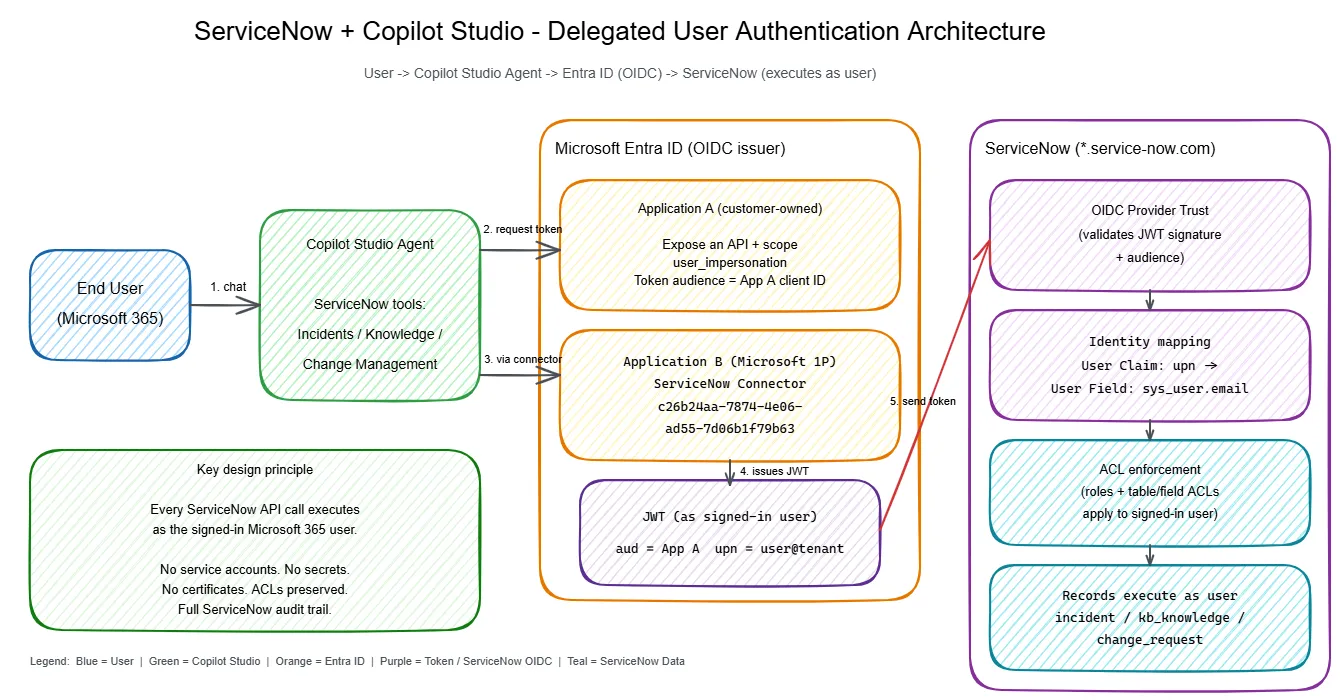
End User → Copilot Studio Agent → Entra ID (issues token as user)
        → ServiceNow OIDC Trust (validates JWT)
        → Maps upn claim → sys_user.email
        → API executes as signed-in user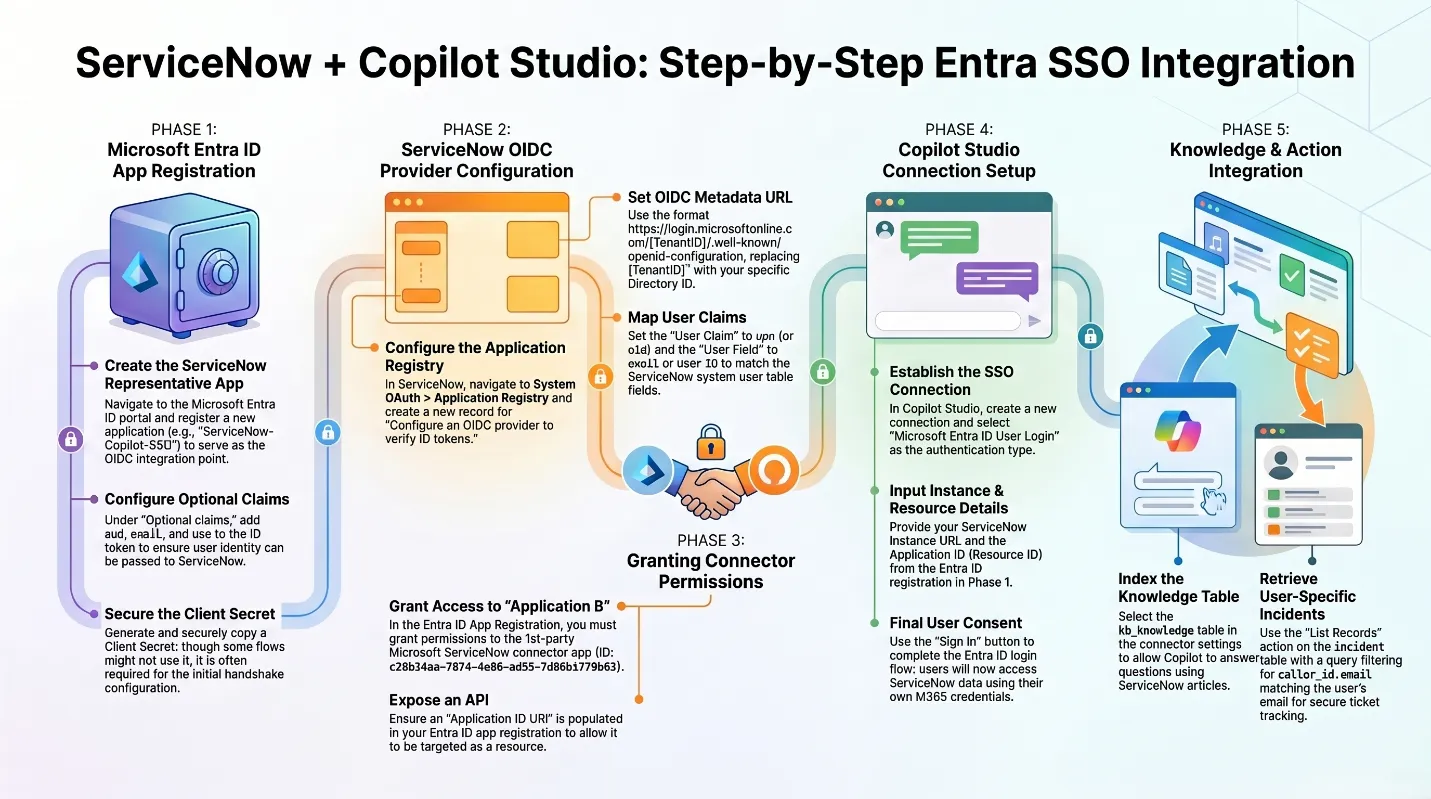
Two Entra application registrations are involved:
- Application A (customer-owned) — represents the ServiceNow resource. You create this.
- Application B (Microsoft-owned first-party connector) — client ID
c26b24aa-7874-4e06-ad55-7d06b1f79b63. It already exists in every tenant. Do NOT create your own app registration for this ID.
Why?Keep the two apps straight — it's the #1 source of confusion
Application A is the resource: it’s the audience ServiceNow trusts and the
thing you expose a user_impersonation scope on. Application B is
Microsoft’s shared connector app that actually requests tokens on the user’s
behalf. Your only job with Application B is to authorize it on Application A —
never to recreate it. If you find yourself registering an app with that GUID,
stop; it’s already there.
Authentication options for ServiceNow tools
When the ServiceNow connector is used as a tool in Copilot Studio, the connection can be configured with Basic Authentication, Microsoft Entra ID OAuth using Certificate, or Microsoft Entra ID OAuth using User Login. The connector also exposes a ServiceNow OAuth 2.0 type that authenticates directly against ServiceNow’s own OAuth server rather than Microsoft Entra ID; it’s less common in Copilot Studio agent scenarios and is not the focus of this guide. Basic Authentication uses a fixed ServiceNow account. Certificate-based OAuth is an application-token pattern suited to service-to-service or unattended access and therefore executes with the permissions assigned to the application identity. Microsoft Entra ID User Login is a delegated, per-user pattern in which each agent user signs in and ServiceNow evaluates the request as that mapped user.
Microsoft Entra ID User Login is often preferred for interactive Copilot Studio agents because it honors the signed-in user’s existing ServiceNow roles, ACLs, record-level permissions, and audit identity. This avoids running every request through a shared service account or the Copilot Studio agent creator’s connection, either of which can grant users access or actions beyond what their own ServiceNow account permits.
This delegated authentication pattern can be used by Copilot Studio tools that
call ServiceNow APIs for Incident Management, Change Management, and Knowledge
Management, subject to the connector operation, enabled ServiceNow APIs or
plugins, and the signed-in user’s ServiceNow permissions. For example, the user
must have the appropriate incident or change roles to access those records, and
knowledge operations require access to the relevant knowledge bases and the
ServiceNow Knowledge API (the sn_km_api plugin) where applicable.
Prerequisites
- Admin access to Microsoft Entra ID (Azure portal)
- Admin access to a ServiceNow instance (Yokohama, Zurich, or Australia release)
- Copilot Studio maker access with an agent that will use a ServiceNow connector action
- ServiceNow OAuth enabled
Why?⚠ ServiceNow domain limitation: custom domains are not supported
The ServiceNow connector’s OAuth User Login flow only supports instances on
*.service-now.com. Custom domains such as *.servicenowservices.com are
not supported and will fail authentication. Customers on custom domains must
fall back to Basic Authentication.
Step 1: Register the ServiceNow OIDC app in Entra ID
Register an app in Entra ID that represents your ServiceNow instance (“Application A”). ServiceNow will use this app as the token audience.
- Go to Entra ID > App registrations > New registration.
- Name it (e.g.,
ServiceNow OIDC) and set audience to Single tenant. - Leave Redirect URI blank.
- Click Register, then capture the Application (client) ID and Directory (tenant) ID from the Overview page.
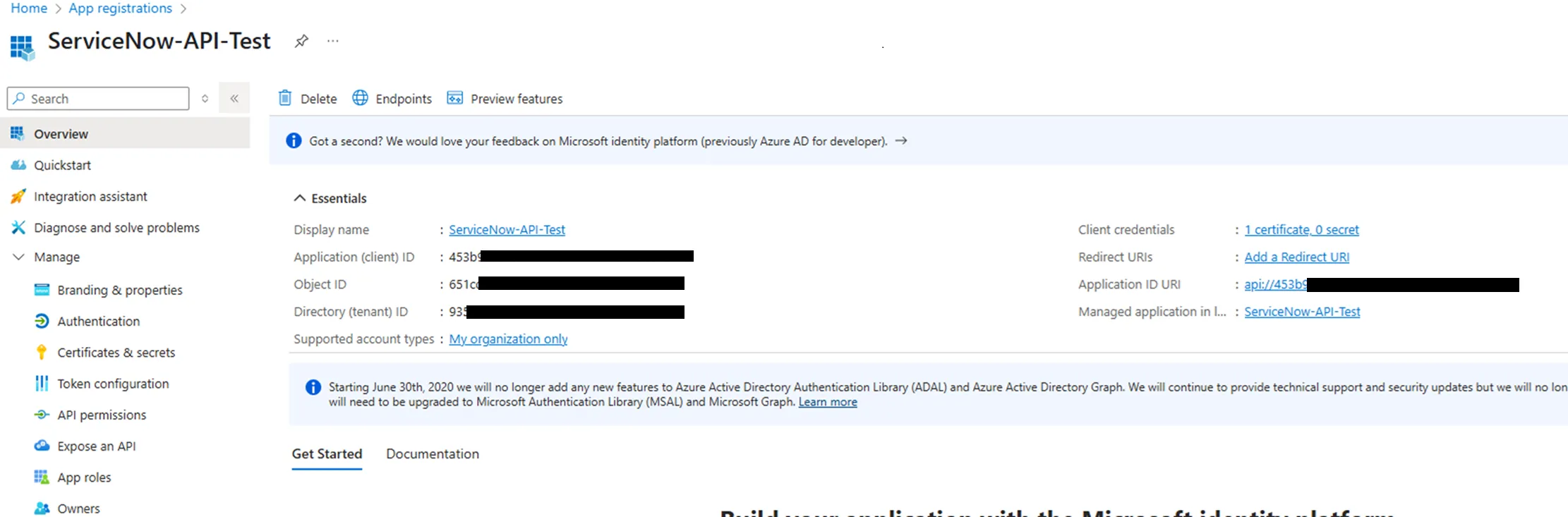
- Under Token configuration > Optional claims, add
aud,email, andupnto both the ID token and Access token.
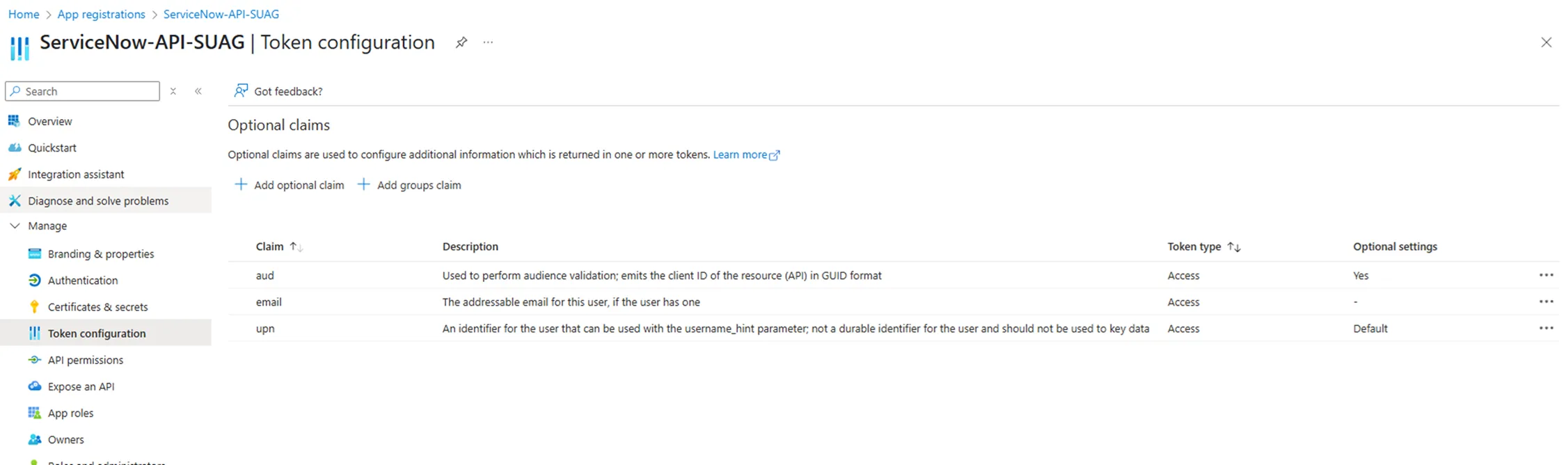
- Under Expose an API:
- Set the Application ID URI to
api://<client-id>. - Add a scope named
user_impersonation. - Who can consent: Admins and users.
- Provide an admin consent display name and description.
- Set the Application ID URI to
- Under Expose an API > Authorized client applications, add the ServiceNow
connector first-party app:
- Client ID:
c26b24aa-7874-4e06-ad55-7d06b1f79b63 - Select the
user_impersonationscope.
- Client ID:
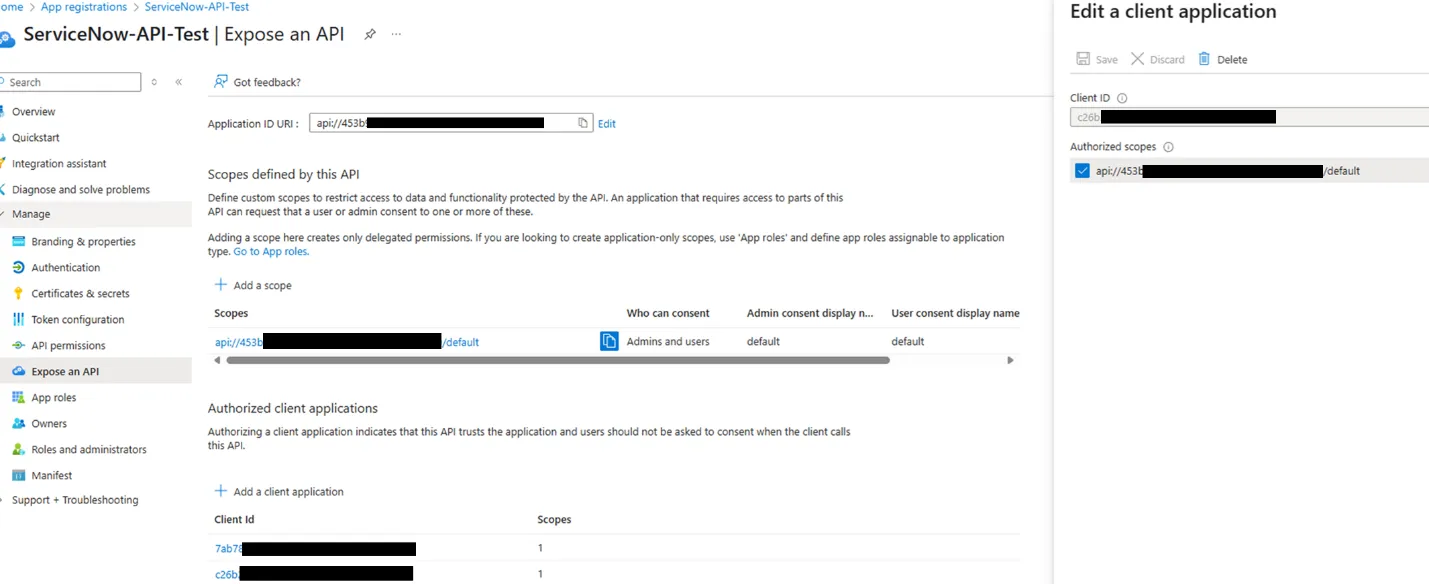
Step 2: Configure the OIDC provider in ServiceNow
ServiceNow needs to trust ID tokens issued by Entra ID. The navigation path differs by ServiceNow release.
ServiceNow Yokohama
- Navigate to System OAuth > Application Registry > New.
- Select Configure an OIDC provider to verify ID tokens.
ServiceNow Zurich & Australia
- Navigate to System OAuth > Application Registry > New.
- Select New Inbound Integration Experience > New Integration.
- Choose Third party ID token issued by OIDC supporting identity provider.
Configuration (applies to all ServiceNow releases)
OAuth Application Registry entry:
- Client ID: the ServiceNow OIDC app’s client ID (from Step 1)
- Client Secret: any value (not used in this flow, but the field is required)
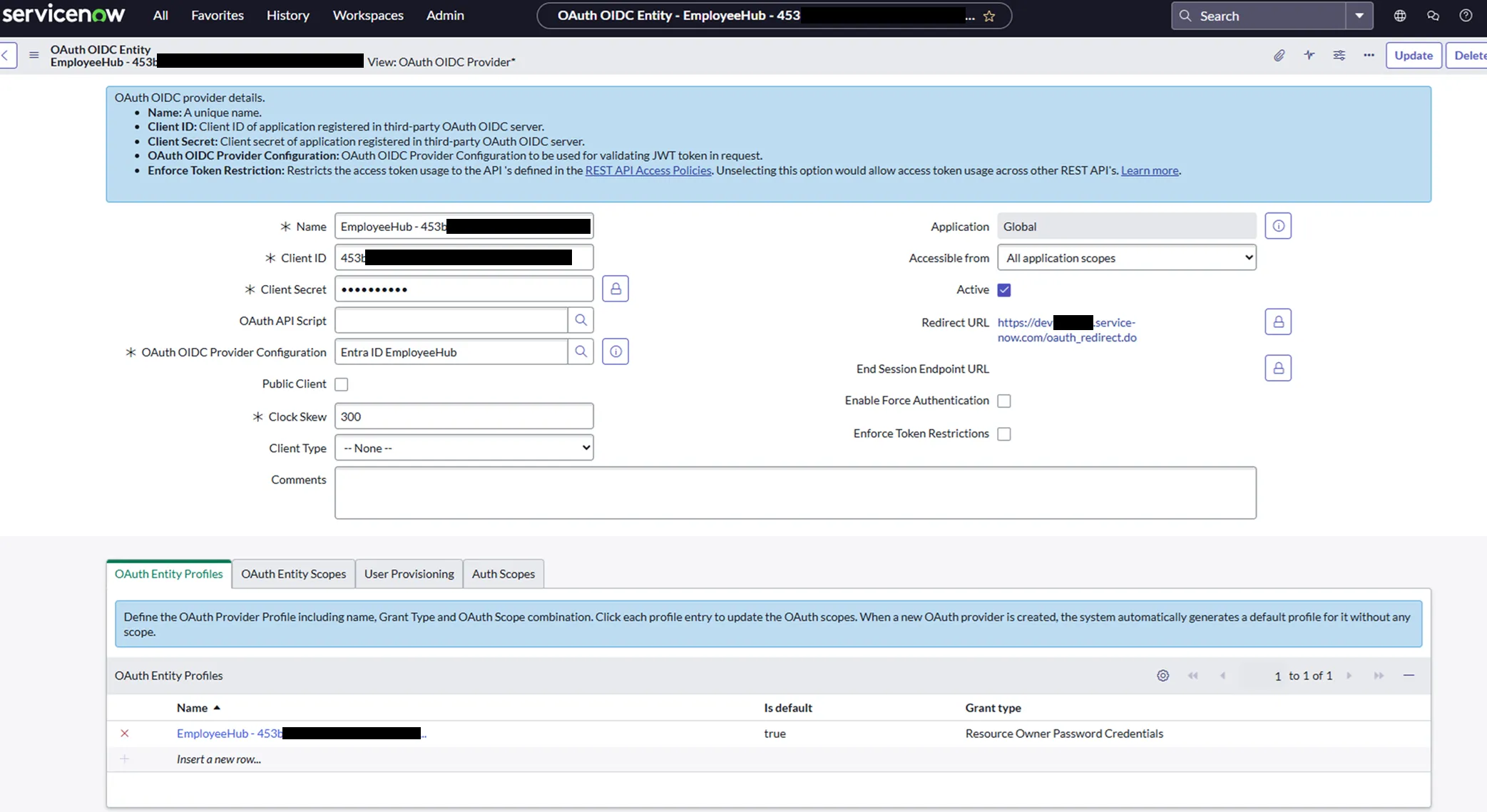
OIDC Provider Configuration (create new):
| Setting | Value |
|---|---|
| OIDC Provider | Microsoft Entra ID |
| OIDC Metadata URL | https://login.microsoftonline.com/<tenant-id>/.well-known/openid-configuration |
| User Claim | upn |
| User Field | email |
| Cache Life Span | 120 |
| Enable JTI claim verification | Disabled |
| Application | Global |
| Active | Yes |
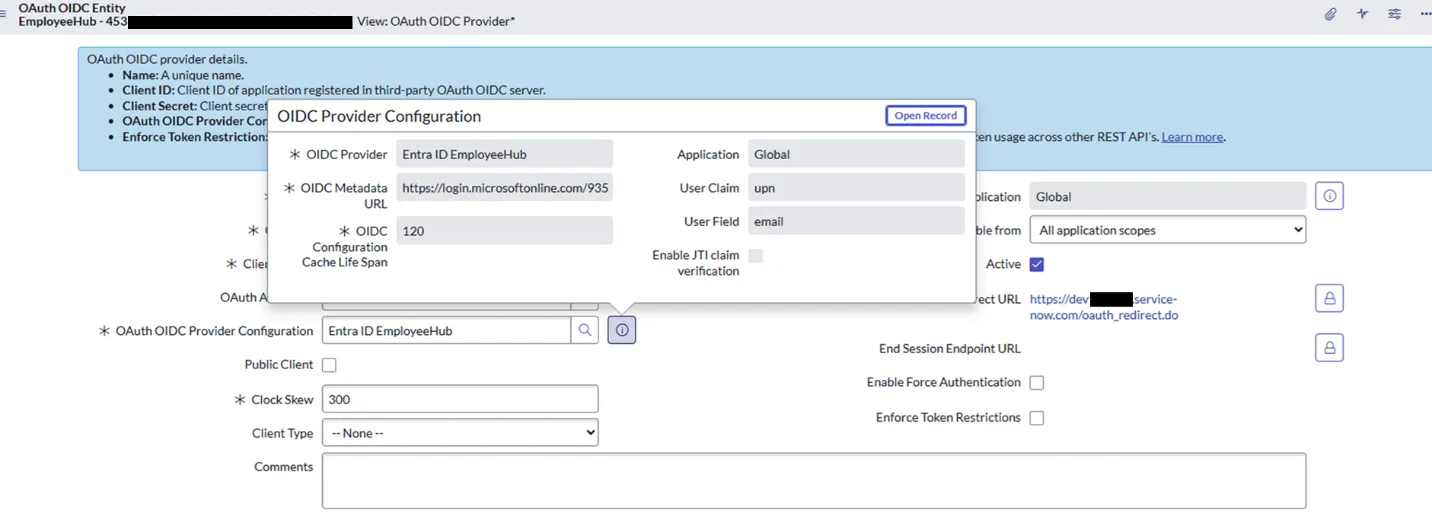
Why?Why email and not user_name?
ServiceNow’s sys_user.user_name field (displayed as “User ID”) has a
40-character limit. Many ServiceNow OIDC examples default the User Field to
user_name, so mapping to email here is a deliberate choice rather than the
common default. UPNs from long tenant names (e.g.,
firstname.lastname@long-tenant-name.onmicrosoft.com) can exceed the
user_name limit and cause silent identity-mapping failures. Mapping to
sys_user.email avoids that limit and is more robust across tenants.
Save the OIDC Provider Configuration, then save the Application Registry entry.
Step 3: Verify ServiceNow user records
Each Entra ID user who will use the agent needs a corresponding ServiceNow user
whose email field matches their Entra ID upn claim value.
Verify by opening a test user in ServiceNow and confirming:
- The user is active.
sys_user.email= the user’s Entra UPN (typicallyfirstname.lastname@tenant.com).- The user has the ServiceNow roles required for the tables you’ll query (e.g.,
itilfor incidents,knowledgefor KB).
Why?Identity mapping tip
If the user’s UPN differs from their email (common in federated tenants), either update the ServiceNow email to match the UPN, or configure a custom Entra claim and map it in the OIDC Provider Configuration.
Step 4: Maker creates the initial connection
The agent maker must set up the connection first before end users can use it.
- In Copilot Studio, open your agent and add a ServiceNow tool (e.g., Get Record Types, List Records, or Create Record).
- Go to Settings > Connection Settings for the ServiceNow connection.
- Click + Add new connection (or use an existing one).
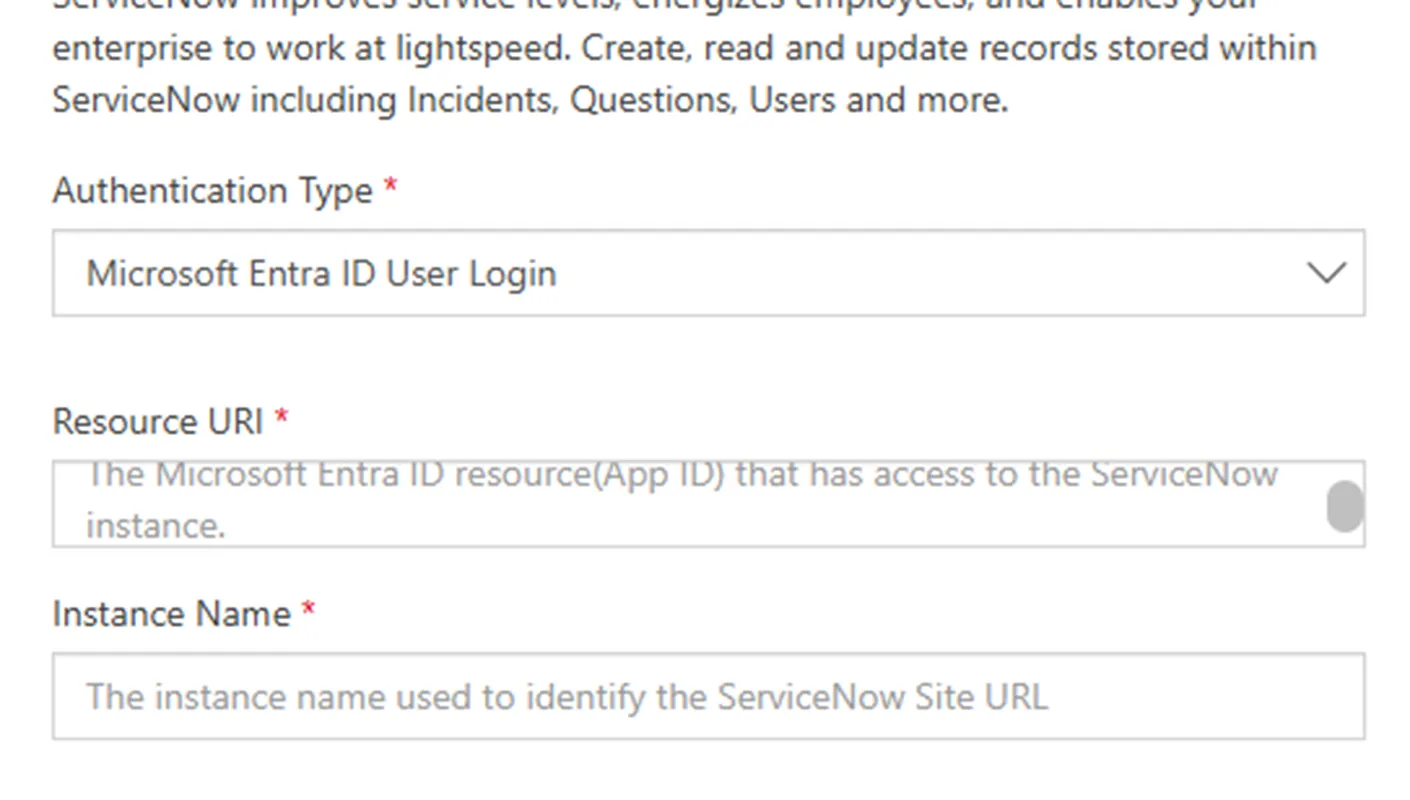
- Select Microsoft Entra ID User Login as the authentication type.
- Provide:
- Resource URI: the ServiceNow OIDC app’s Client ID GUID (from Step 1).
⚠ Use the Client ID GUID, NOT the
api://<client-id>URI. This is a common source of failures. - Instance Name: your ServiceNow instance subdomain only (e.g.,
dev12345— do not include the.service-now.comsuffix).
- Resource URI: the ServiceNow OIDC app’s Client ID GUID (from Step 1).
- Sign in with your Entra ID credentials to create the connection.
- Confirm the connection status shows as Connected.
Step 5: Enable connection parameter sharing (critical)
Why?This step is required for end-user connections to work
This is the step that allows end users to create their own connections. Without it, end users clicking Allow on the consent card will fail — only the maker’s own connection will work.
- In Settings > Connection Settings, select the ServiceNow connection.
- Go to the Connection parameters tab.
- Toggle “Allow permission to share parameters” to On.
- Verify the Resource URI and Instance Name are populated correctly.
- Click Save.
Without this toggle, Copilot Studio will fail to create per-user connections when either end users or makers click Allow on the consent card at runtime.
Step 6: Publish and test
- Publish the agent.
- Test with an end-user account (not the maker):
- The user sees a ServiceNow consent card with an Allow button in the chat.
- Clicking Allow creates a per-user connection using the parameters shared in Step 5.
- The user is prompted to sign in with their Entra ID account.
- Subsequent requests reuse this per-user connection automatically.
- Verify the ServiceNow operation succeeds under the end user’s identity by
checking:
- The record’s
sys_created_byorsys_updated_byfield in ServiceNow shows the end user, not a service account. - ServiceNow ACLs are enforced (e.g., users can only see records they’re authorized to see).
- The record’s
Troubleshooting
| Symptom | Likely cause | Fix |
|---|---|---|
| End user clicks Allow, connection fails | Parameter sharing toggle not enabled | Return to Step 5, enable “Allow permission to share parameters” |
| “Resource URI” error at connection creation | Used api://<client-id> instead of GUID |
Use the raw Client ID GUID in the Resource URI field (Step 4) |
| Authentication succeeds but “User not found” in ServiceNow | Identity mapping mismatch | Verify the upn claim value matches sys_user.email (Step 3) |
| Long UPNs failing | Mapped to user_name (40-char limit) |
Change User Field to email in OIDC Provider Configuration (Step 2) |
AADSTS65001 consent error |
Authorized client not configured | Verify connector app c26b24aa-7874-4e06-ad55-7d06b1f79b63 is added under Expose an API > Authorized client applications (Step 1) |
| Connection works for maker but not end users | Parameter sharing not enabled | See Step 5 |
| Instance not reachable / 404 | Custom domain (e.g., .servicenowservices.com) |
Not supported by OAuth User Login — see the Prerequisites limitation |
| “Invalid redirect URI” | Wrong app configured / redirect mismatch | Application A should have no redirect URI; the connector app handles redirects |
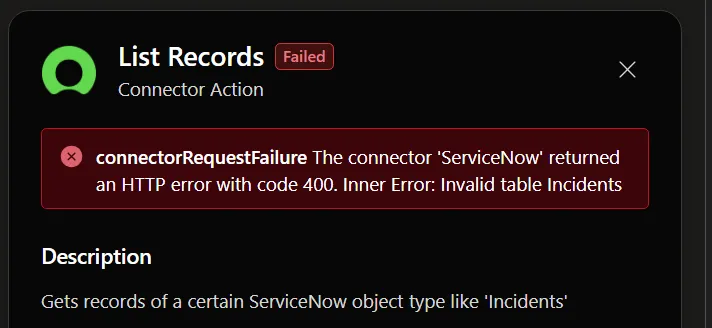
| Connector ‘ServiceNow’ returned HTTP 400 — Invalid table | Wrong table name in tool config | Verify the ServiceNow table name (e.g., use incident, not Incidents) |
Security & governance checklist
- ✓ No client secrets stored in Copilot Studio for the delegated flow
- ✓ Only the Microsoft first-party connector app (
c26b24aa-…) is authorized on Application A - ✓ ServiceNow ACLs enforced per-user (validate with a low-privilege test user)
- ✓ JTI verification disabled (required for Entra tokens, which don’t include JTI)
- ✓ OIDC metadata cache lifespan set to 120 seconds (allows key rotation)
- ✓ Require confirmation nodes in the agent before any write operations (Create/Update/Delete records)
- ✓ Avoid exposing internal ServiceNow
sys_idvalues in agent responses - ✓ Use least-privilege ServiceNow roles for the users who will interact with the agent
References
- Microsoft Learn: ServiceNow connector
- Copilot Studio: Authenticate with Microsoft Entra ID
- ServiceNow docs: OIDC ID token verification
Why?Document revision history
v1.0 — 2026-06-01 — Russ Rimmerman. Initial complete setup guide for configuring delegated Microsoft Entra ID user authentication with the ServiceNow connector in Copilot Studio, including prerequisites, implementation steps, troubleshooting, security guidance, and references. Tested against ServiceNow Yokohama, Zurich, and Australia releases.
Get the latest learnings
Occasional notes on Azure, AI, and cloud architecture. No spam, unsubscribe anytime.