See Every CSP Violation in Your Power Platform Apps
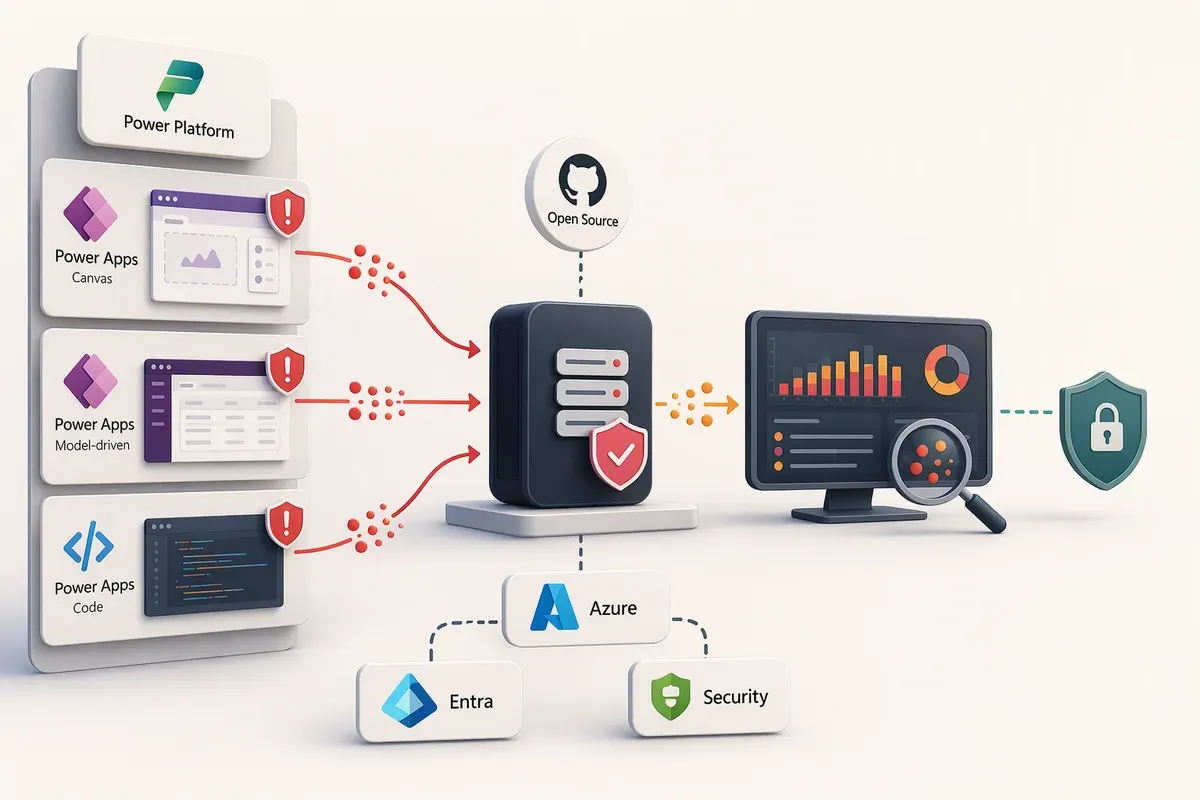
Microsoft’s guidance for rolling out Content Security Policy (“CSP”) in Power Platform comes down to three steps: enforce the policy in a dev or test environment, turn on report-only mode in production, then enforce in production once no violations are reported.
That last step has a quiet dependency. To know nothing is being reported, you need somewhere for the reports to land and a way to read them.
The Power Platform admin center asks for a reporting endpoint URL. From then on, every user’s browser posts a report to that URL whenever the policy blocks something, or would have blocked it in report-only mode. What sits behind the URL is yours to provide. I needed one that covered code apps, model-driven apps, and canvas apps, so I built CSP Reporting Server: a small, dependency-free collector with a live dashboard for triaging what the policy blocks.
Verified against Microsoft Learn on 2026-09-29.
What CSP does in Power Platform
A CSP is a response header that tells the browser where a page is allowed to load scripts, styles, images, frames, and network connections from. Anything outside that list gets blocked. Power Platform supports it for model-driven, canvas, and code apps, and an admin configures it per environment, so each setting applies to every app of that type in the environment. Model-driven and canvas CSP requires a Dataverse environment. Code apps can be configured either way.
The three app types start from different places, and that shapes what you’ll see in the reports:
- Code apps are enforced by default with a tight policy.
script-srcis'self'plus platform domains, andconnect-srcis'none'. If your app loads a script from a CDN or calls an outside API directly, the browser blocks it until you add that source. - Model-driven and canvas apps start with a permissive default (wildcards
and
'unsafe-inline'for scripts and styles), so few violations fire. That changes when you turn on Strict CSP, which drops most wildcards and unsafe directives. Enforcement is set separately for model-driven and canvas apps. - Embedding is controlled by
frame-ancestorsfor all three. If an app is hosted in Teams, Outlook, or a Power BI report and that origin isn’t on the list, the frame is blocked.
Reporting is configured in two places. Model-driven and canvas apps share one reporting endpoint. Code apps have their own, on a separate tab. Either way, reports are sent whether or not enforcement is on.
Why?Enforce vs. report-only
In enforce mode, the browser blocks the resource and sends a report. In report-only mode, it lets the resource load and still sends the report, marked as report-only. That’s what makes report-only safe in production: you see exactly what would break without anything breaking.
Why the reports are worth collecting
The browser’s developer tools show CSP errors for the one session you’re watching. A reporting endpoint shows them for every user, in every app, on every page they open. That’s the difference between “it works when I test it” and knowing it works for the sales team running the app inside Teams.
The reports turn a policy change from a guess into a checklist:
- Before you enforce Strict CSP in production, you see which scripts, styles, and frames would be blocked, and on which pages.
- When a code app breaks after a deploy, the report names the directive and the blocked URL, so you know which source to add.
- When an embed gets blocked, you hear about it from a report instead of a support ticket.
The catch is that raw reports are JSON bodies posted to a URL, one violation or one batch at a time. You can’t read hundreds of them at a glance. That’s the gap I wanted to close.
What CSP Reporting Server does
It’s a single Node.js server with no runtime dependencies, MIT licensed. Point your apps at it and the stream of JSON becomes something you can sort through in a few minutes.
- Both report formats. It accepts the modern Reporting API (
report-to,application/reports+json) and legacyreport-uri(application/csp-report) and normalizes them into one shape. Learn’s model-driven and canvas examples usereport-uri. You don’t need to know which one your app sends, because the/reportingendpoint accepts either format. - Triage first. Reports are grouped by directive, blocked URL, and app, with one-click filters, search, and an enforced/report-only toggle. Filters live in the URL, so you can share a view with whoever owns the fix.
- Live updates. New reports stream into the dashboard as they arrive, with an activity chart split by enforced and report-only.
- A “Connect an app” helper that generates the endpoint URLs and headers to paste for any app name.
Click any report and the inspector opens with the full policy and the violated
directive highlighted in place. That includes fallbacks: if the browser reports
script-src-elem and your policy only has script-src (or only
default-src), the inspector highlights the line that actually applied. That’s
the line you’d edit, and it’s often not the one named in the report.
The dashboard runs under its own strict 'self'-only CSP. A CSP tool that needed
'unsafe-inline' to render would have been hard to take seriously.
Try it locally first
You’ll need Node.js 22 or later.
npm install   # dev tooling only (ESLint); the server has no runtime dependencies
npm start     # http://localhost:9000
Open http://localhost:9000/test to see the whole loop. The test page serves a
strict policy and breaks it on purpose four ways: an inline style, an inline
script, a cross-origin image, and an eval() call. Each one shows as blocked on
the page and lands in the dashboard a moment later.
Deploy it where browsers can reach it
Every user’s browser sends the reports, so the endpoint has to be reachable over HTTPS from wherever your users are. Localhost is fine for the test page. It isn’t an option for a Power Platform environment.
The repo includes Bicep for Azure App Service (Linux, Node 22, F1 Free tier),
plus Log Analytics and Application Insights. App Service Authentication with
Microsoft Entra ID protects the dashboard, /api/*, and /test. The ingestion
path (/reporting) and /health stay anonymous, because a browser can’t sign
in to deliver a report.
Deployment is five steps: pick an environment name, create a single-tenant Entra
app registration for sign-in, deploy the Bicep with az deployment sub create,
register the sign-in redirect URI, and zip-deploy the code. The
README
has the exact commands.
Configure CSP in the Power Platform admin center
With the collector running, the rest happens in the Power Platform admin center. You need to be an administrator of the environment, and it’s worth doing this in a dev or test environment before production.
Every reporting endpoint URL starts with https://<your-host>/reporting/. What
comes after that is up to you. Use a name that tells you where the reports are
coming from, such as https://contoso.com/reporting/my-app. The collector shows
that name as the app in the dashboard, so give each reporting setting its own
name. Keep it to one path segment, with no extra slashes. I use the environment
name plus the app type.
Open the CSP settings
- Sign in to the Power Platform admin center.
- In the navigation pane, select Manage, then Environments.
- Select the environment, then select Settings in the command bar.
- Expand Product and select Privacy + Security.
- Scroll to Content security policy. There are three tabs: App (model-driven), App (canvas), and App, which is the one for code apps.
Turn on reporting for model-driven and canvas apps
-
Select the App (model-driven) tab.
-
Turn on Enable reporting and enter your collector’s endpoint in Reporting endpoint:
https://<your-host>/reporting/<env-name>-mda-canvasIf you also use code apps in this environment, turn on Enable reporting on the App tab as well. It’s a separate setting, covered in Turn on reporting for code apps.
-
Decide on Enforce content security policy. In dev or test, turn it on so you see real blocks. In production, leave it off for now. The apps then run in report-only mode and reports still arrive.
-
Select the App (canvas) tab and set Enforce content security policy the same way. Enforcement is separate for each app type.
-
Save your changes.
Model-driven and canvas apps share one reporting endpoint, so they show up under one app name in the dashboard. The Page column tells you which app raised each report.
Turn on reporting for code apps
-
Select the App tab.
-
Turn on Enable reporting and enter:
https://<your-host>/reporting/<env-name>-code-apps -
Leave Enforce content security policy on. That’s the default for code apps, and the reports will show you what the policy is already blocking.
-
Save your changes.
Now open an app, click around, and watch the dashboard. report-uri reports
show up right away. Chromium batches report-to deliveries, so give those up to
a minute.
Add sources when the reports call for it
Configure directives is where a report turns into a fix. Turn off the
Use default toggle for a directive (for example, Use default
frame-ancestors), then add the source a report showed you needs to be
allowed. Custom values are appended to the default, except where the
default is 'none', in which case they replace it. Turning off a default and
saving an empty list removes that directive from the policy entirely, so don’t
leave one empty by accident.
For model-driven and canvas apps, frame-ancestors is the directive you’ll
customize most often. That’s where you’d add hosts like
https://teams.microsoft.com or https://app.powerbi.com when an app is
embedded there.
Managing many environments
If you manage a lot of environments, both settings can be scripted. Code apps
use the PowerApps_CSPReportingEndpoint setting through the Power Platform API,
and model-driven and canvas apps use the ContentSecurityPolicyReportUri
organization setting. Microsoft Learn covers both:
CSP for model-driven and canvas apps
and
CSP for code apps.
Turning reports into decisions
Here’s the loop I use:
- Filter to report-only. That’s the list of things that would break if you enforced today.
- Work down the Blocked list. Each unique blocked URL is one decision: allow the source in Configure directives, or fix or remove whatever is loading it.
- Treat
inlinedifferently. When the Blocked column saysinline, it’s an inline script or style, not a domain. Adding a source won’t cover it. The fix is usually moving that code into a file. - Wait for a representative stretch. A quiet afternoon proves little. Let it run through a normal business cycle, including whatever month-end process touches the apps.
When the report-only list stays empty, enforce.
Things to know before you rely on it
- No built-in authentication when you run it on its own. Put it behind an authenticating proxy, or use the Azure deployment, which puts Entra ID in front of the dashboard. Reports include page URLs and browser user agents, so treat them like any other operational log.
- Ingestion is anonymous by design. Anyone who knows the URL can post to it. Request bodies are capped at 1 MB, and the in-memory list keeps the latest 5,000 reports, but the report file on disk keeps everything. Keep an eye on storage if it runs for months.
- F1 has no Always On. The first report after about 20 idle minutes hits a
cold start, and
report-urireports, the kind model-driven and canvas apps send, can be lost during it. Use B1 or higher if you need every report. - It’s a single instance writing to a single file. It’s built for triaging a rollout, not for long-term security retention. If you need retention and alerting, route reports into Log Analytics or your existing security monitoring.
Where to start
Deploy the collector, point a dev environment at it, and turn on enforcement there (or Strict CSP for model-driven and canvas). Click through your apps and clear what shows up. Then point production at it in report-only mode and let it run. When that list goes quiet, you have the evidence Microsoft’s rollout guidance asks for before you enforce.
The code is on GitHub at russrimm/csp-reporting-server, and it works for any web app, not just Power Platform. If you’re new to code apps, my Power Apps code apps post covers the build loop that gets you to the point where CSP matters.
Get the latest learnings
Occasional notes on Azure, AI, and cloud architecture. No spam, unsubscribe anytime.
Related articles
Microsoft Communications Portal: One Feed for Every Microsoft Update
What the Microsoft Communications Portal is, how it aggregates Power Platform, Microsoft 365, Azure, and Fabric update feeds into one dashboard, its defense-in-depth security model, deployment options with Azure Developer CLI or Docker, and how to contribute on GitHub.
InfiniAIBook: A Self-Hosted AI Research Notebook
A field guide to InfiniAIBook, the AI research notebook you host yourself: cited chat, live voice discussions, Studio formats, videos, and Azure deployment.
Power Apps Code Apps: Your Code, Power Platform's Guardrails
Code apps let you build a React or Vue app in your own IDE and run it on Power Platform, with Entra ID sign-in, 1,400+ connectors, and DLP handled for you.
Comments
Comments are hosted by GitHub Discussions. Loading them connects your browser to giscus.app and GitHub.